
The screen
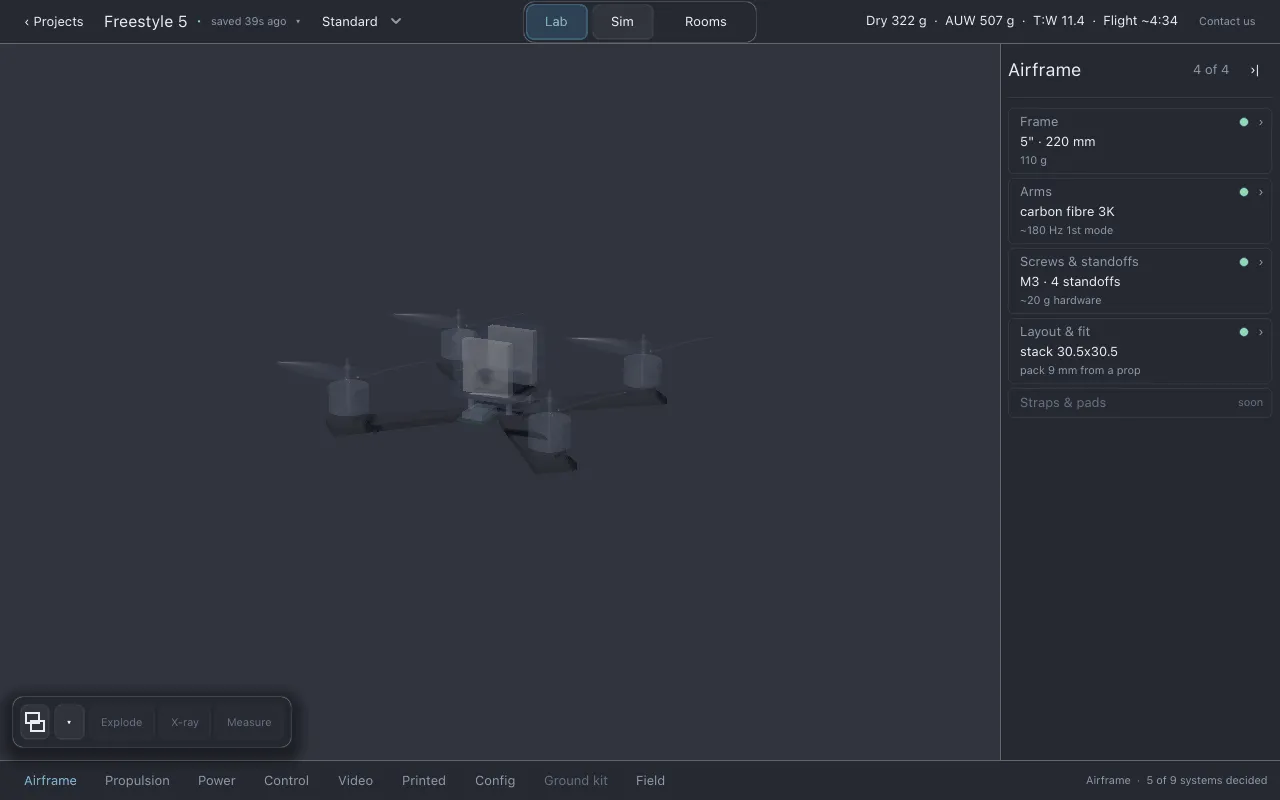
With a drone open in Lab, the drone fills the window. Everything else sits around the edges so that the drone stays visible.
Top bar
Section titled “Top bar”From left to right:
| Control | What it does |
|---|---|
| ‹ Projects | Saves and closes the drone, and shows the Projects screen. |
| Drone name | Click it to open the project menu. See Projects and saving. Beside it: whether the drone is saved, and when. |
| Conditions | The weather every number is quoted under: wind, gustiness and temperature. You can switch it from anywhere. Conditions are edited in Field. |
| Lab · Sim · Rooms | In the centre. Lab is the garage, where you build. Sim flies what you built. Rooms opens the Frame bench and Studio. See Lab and Sim. |
| Build numbers | Dry · AUW · T:W · Flight: mass without the pack, all-up weight, thrust-to-weight at the bench, and estimated flight time under the chosen conditions. The ~ means the flight time is an estimate. These numbers are shown only here, never repeated inside a section. |
| Contact us | Opens this site in your browser. |
Section row
Section titled “Section row”The row along the bottom lists the nine sections as words: Airframe, Propulsion, Power, Control, Video, Printed, Config, Ground kit, Field. Click one to select it.
Selecting a section dims every part of the drone that belongs to another section, so you can see where its parts sit. Two sections behave differently:
- Airframe’s Frame page is the frame designer, which takes over the stage.
- Field swaps the drone for the flying site. See Field.
Ground kit is greyed. It is selectable, and shows what will belong there. See Ground kit.
At the right-hand end of the row, the status readout names the selected section and counts how many sections have their main parts chosen. It is a count of decisions, not a score of how good the drone is. It also reports what just happened, such as where an export was written.
Section list
Section titled “Section list”The list on the right shows the rows of the selected section. Its header gives the section
name and a count such as 3 of 4: rows decided, out of rows Lothal models. A row marked
soon is not modelled yet and counts in neither.
The ›| button hides the list and leaves a thin strip; click the strip to bring it back. Lothal remembers this per drone.
Every row has three lines:
- The item’s name and a status dot.
- What you chose, in a short phrase such as
2207 · 1960 KV. - The one number that decides it, such as
hover 30%. If the row owns a problem, this line shows⚠and a short form of the problem instead. A~in front of a number means it is an estimate.
| Dot | Meaning |
|---|---|
| Green | Chosen, nothing wrong. |
| Amber | It works, with a limit. Line 3 says what the limit is. |
| Red | Not chosen yet, or it breaks something. |
| Grey, soon | Not modelled yet. |
A warning appears once, on the row of the part that causes it. See Fit checks and warnings.
Item pages
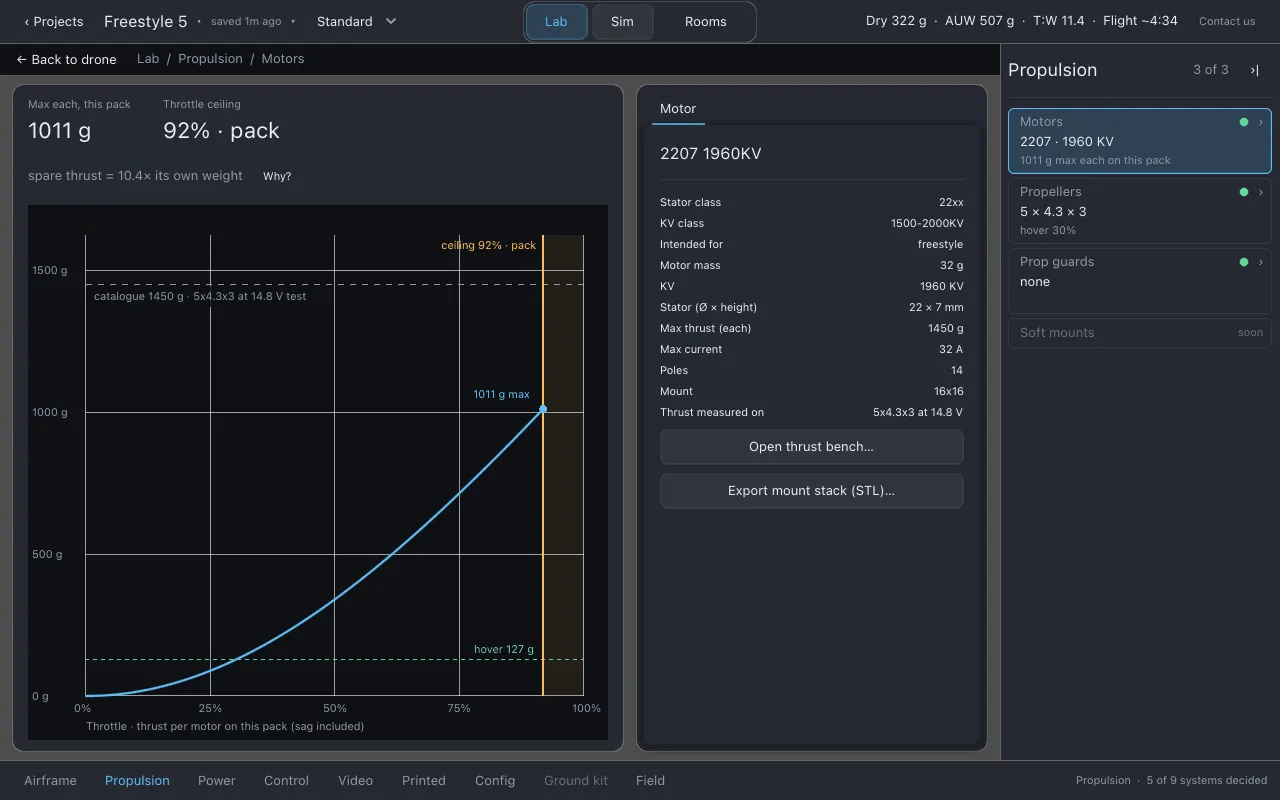
Section titled “Item pages”Click a row to open its page on the stage, in place of the drone. A page shows:
- a ← Back to drone bar and a breadcrumb such as
Lab / Propulsion / Motors; - the two numbers that matter most for that item;
- a drawing of the item, where there is one;
- the item’s full sheet of figures and controls;
- only the warnings that row owns, each with a Why? that reveals the full explanation. With none, the page says Nothing to fix.
The list stays visible and the open row is highlighted, so you can move from item to item without going back first. Press Esc or click ← Back to drone to return.
Part finder
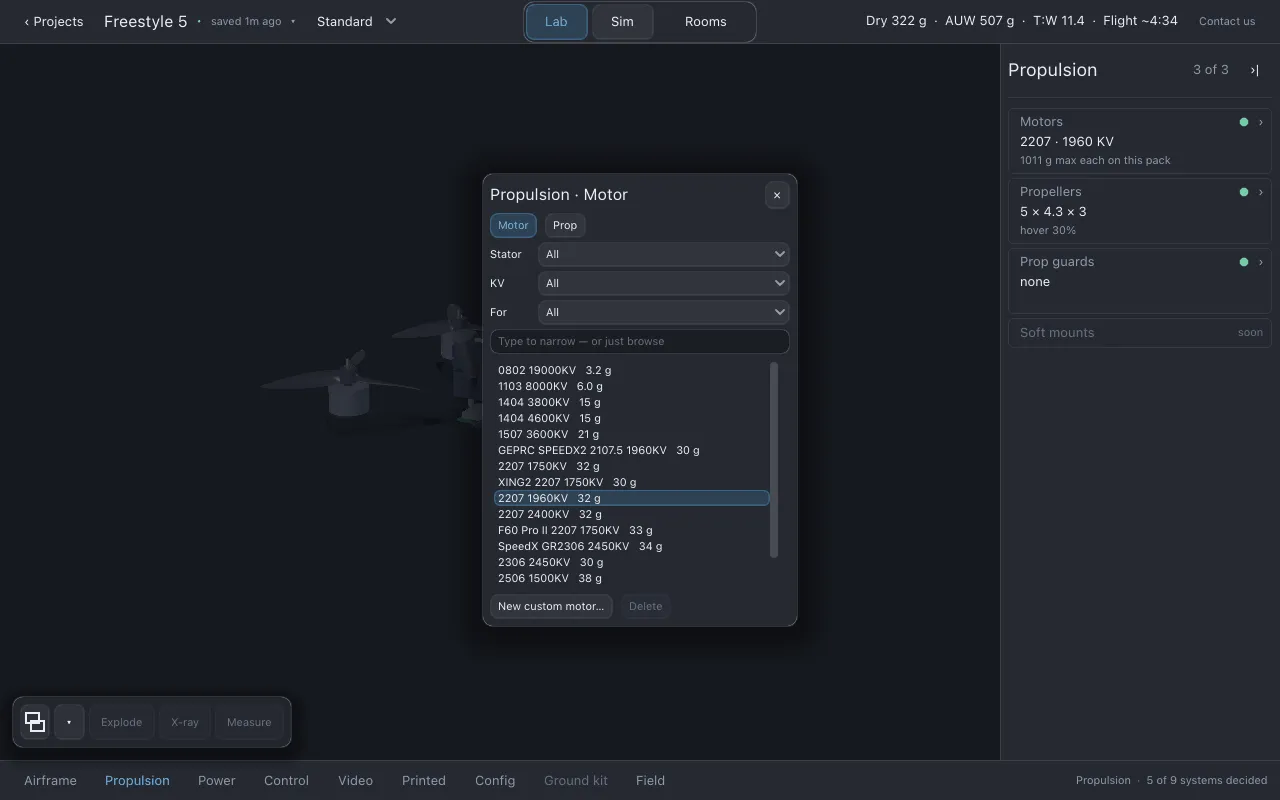
Section titled “Part finder”On a row whose item is a part you buy (Frame, Motors, Propellers, Battery, ESC, Flight controller), the second line is a button. Click it, or Choose… when nothing is chosen, to open the part finder over the drone.
- The whole catalog category is listed at once. Type to narrow it (Type to narrow — or just browse), or use the filter menus at the top.
- Move with ↑ and ↓, or click. The highlighted part is fitted to the drone at once so you can see its effect. Nothing is kept yet.
- Enter keeps the highlighted part. Esc or × closes the finder and puts back the part you had.
- Where a section owns more than one kind of part (Propulsion: Motor and Prop; Power: Pack and ESC), buttons at the top switch between them.
- New custom … adds a part of your own. Delete removes one of your custom parts; it is greyed for catalog parts. See Adding a part.
Parts that are not a single choice from a list have their own controls instead: the receiver, GPS and buzzer are fitted on the Link rail on the Receiver & link page, and the camera, video transmitter and antenna on the Electronics rail on the Video pages.
At the bottom left of the drone view:
- Overlays turns the analysis charts on and off. The arrow beside it chooses which of the five charts are shown. See Overlays.
- Explode, X-ray and Measure are present but disabled in this version.
The tools are hidden while a page, a room or Sim is open.
| Key | Does |
|---|---|
| Esc | Closes the part finder if it is open; otherwise returns from a page to the drone. |
| ↑ ↓ Enter | Move and choose in the part finder. |
All keys are listed in Keyboard and gamepad.
Documentation licensed underCC BY 4.0. Lothal itself is GPL-3.0-or-later.Report a problem.Roadmap.