Your first build and flight
This walk-through takes about ten minutes. You need Lothal installed. A gamepad helps but is not required.
1. Start a drone
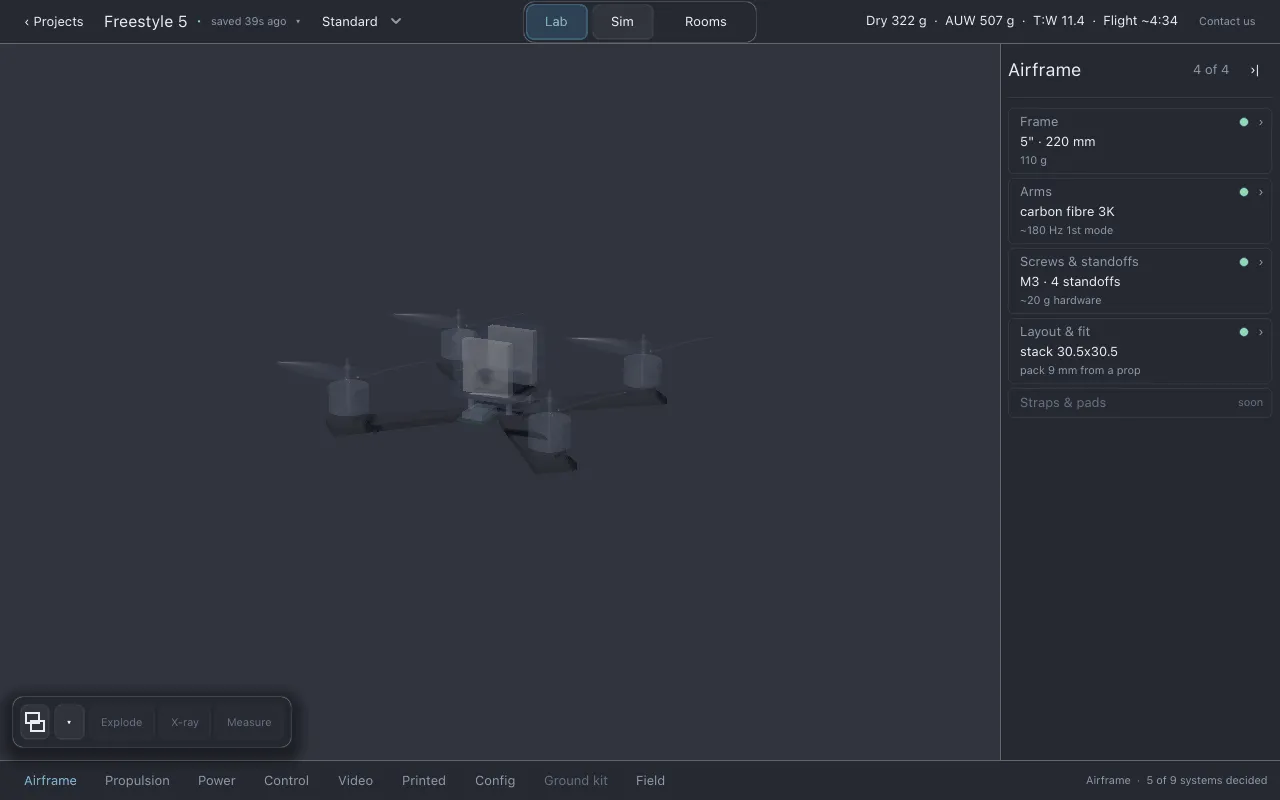
Section titled “1. Start a drone”On the Projects screen, click + New drone. Lothal opens the starting build in Lab: a 5-inch freestyle quad on a 4S 1500 mAh pack.
Look at the right-hand end of the top bar. It reads something like
Dry 322 g · AUW 507 g · T:W 11.4 · Flight ~4:34: the drone’s mass without and with the pack,
its thrust-to-weight ratio, and an estimated flight time. Note the numbers you see.
2. Swap the battery
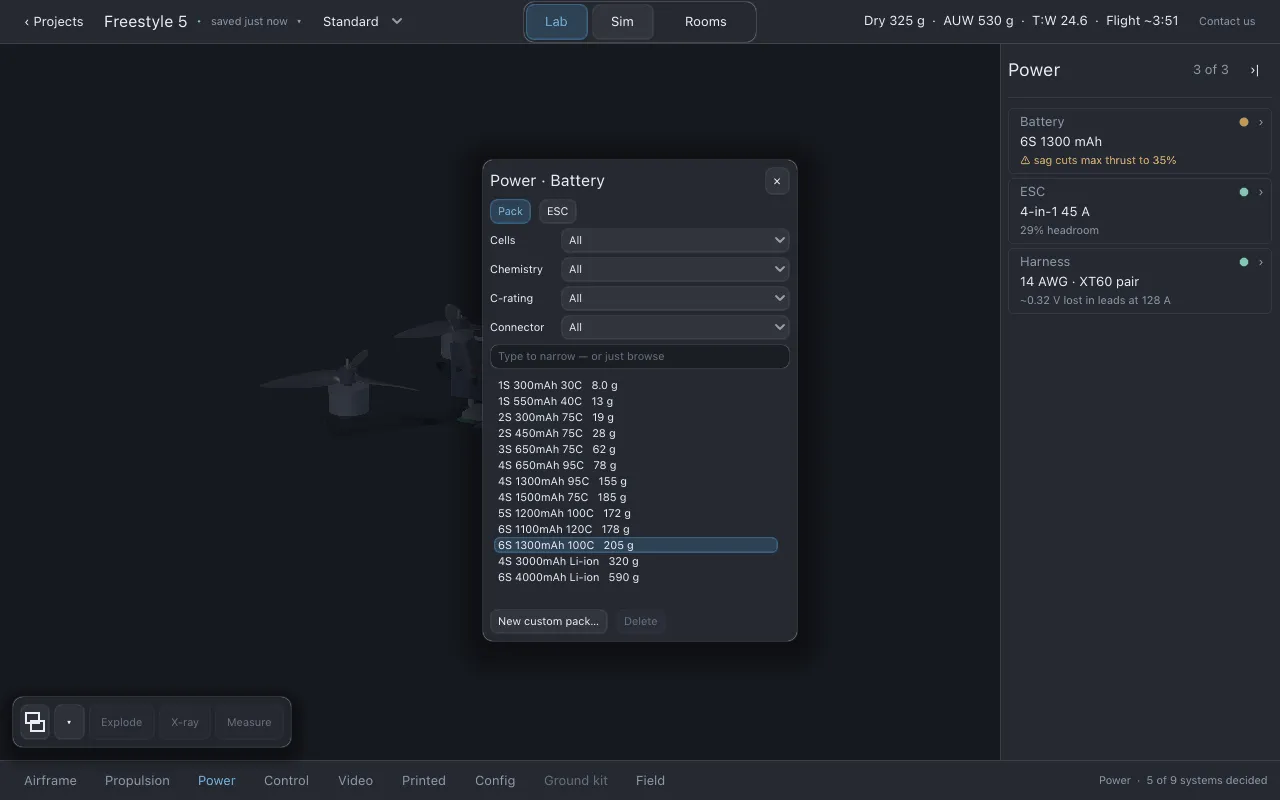
Section titled “2. Swap the battery”- In the section row along the bottom, click Power. The drone dims except for the power parts, and the list on the right shows Battery, ESC and Harness.
- In the Battery row, click the second line, which names the pack you have now
(
4S 1500 mAh). The part finder opens over the drone with every battery in the catalog. - Use ↓ and ↑, or click, to move through the list. Each pack you highlight is fitted to the drone straight away, so you can watch the numbers move.
- Highlight 6S 1300mAh 100C and press Enter to keep it. (Esc would put the old pack back.)
3. Read what changed
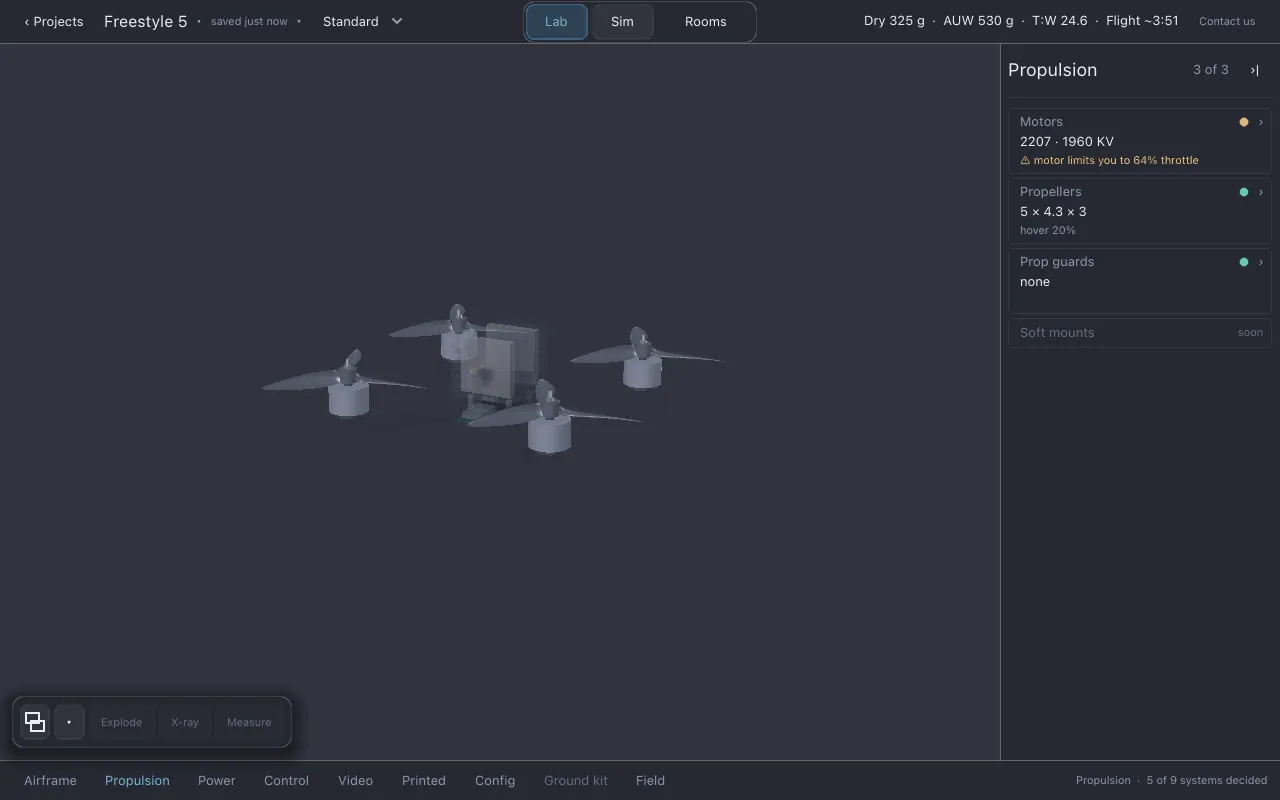
Section titled “3. Read what changed”- The top bar numbers have moved: a different mass, thrust-to-weight and flight time.
- The Battery row now shows the new pack and, on its third line, its estimated flight time or a warning.
- Click Propulsion in the section row. The Propellers row shows the hover throttle, the share of full throttle this drone needs just to hang in the air. A higher-voltage pack spins the same motors faster, so it usually drops.
A row with an amber or red dot has something to say. Click the row to open its page, then Why? beside the warning for the full explanation. See Fit checks and warnings.
4. Fly it
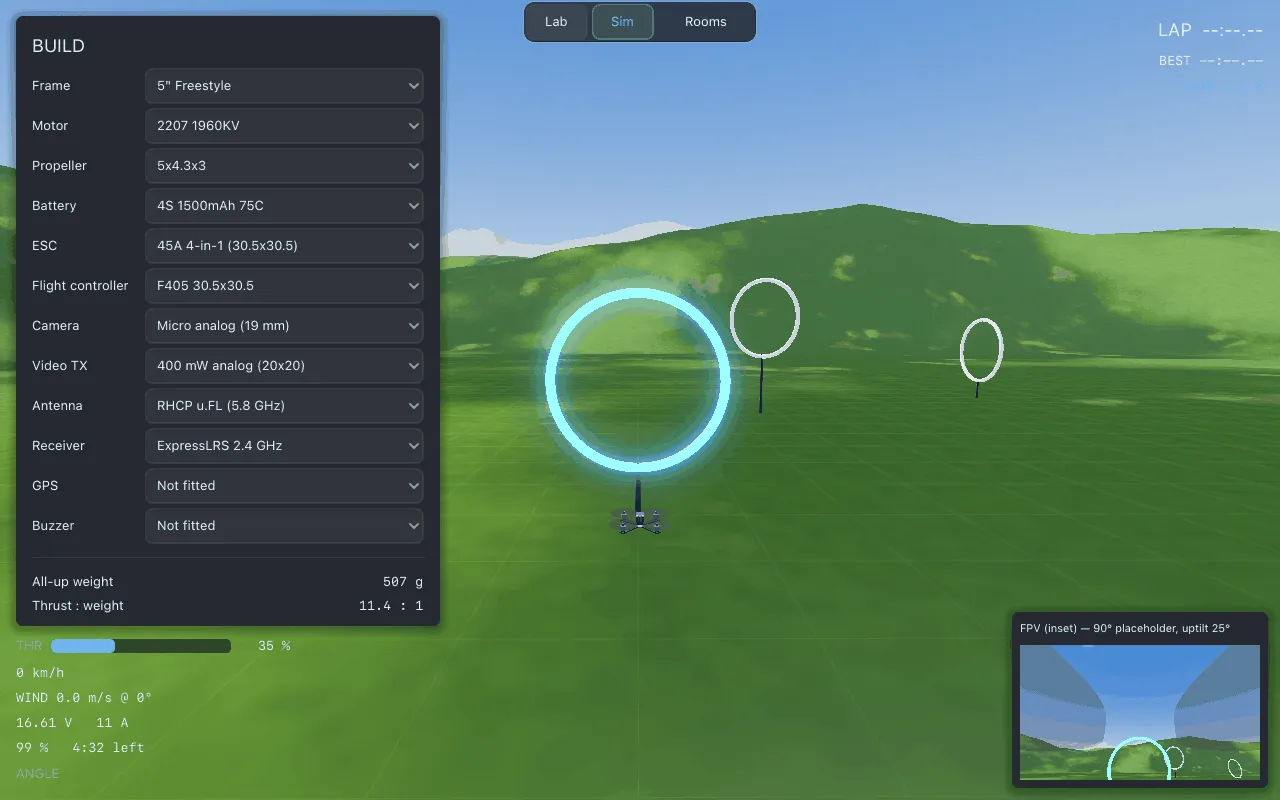
Section titled “4. Fly it”- Click Sim in the centre of the top bar. The garage controls disappear and the drone is at the start of the course.
- Fly through the gates in order. On a gamepad the left stick is throttle and yaw and the right stick is pitch and roll. On a keyboard: W/S throttle, A/D yaw, arrow keys pitch and roll.
- Centred throttle holds a hover. You start in angle mode, which levels the drone when you let go of the stick. Space (or button A on a gamepad) switches to acro.
- The lap time is at the top right. If you crash, the drone restarts at the last gate you cleared, pointing at the next one, and the lap in progress does not count.
5. Record a flight
Section titled “5. Record a flight”Press R. The HUD shows REC while recording. Fly for a while, then press R
again. A banner confirms the log was saved and says how many rows it holds.
6. Open it in Studio
Section titled “6. Open it in Studio”- Click Lab to go back to the garage. Flying used some of the pack’s charge, and Lab remembers that.
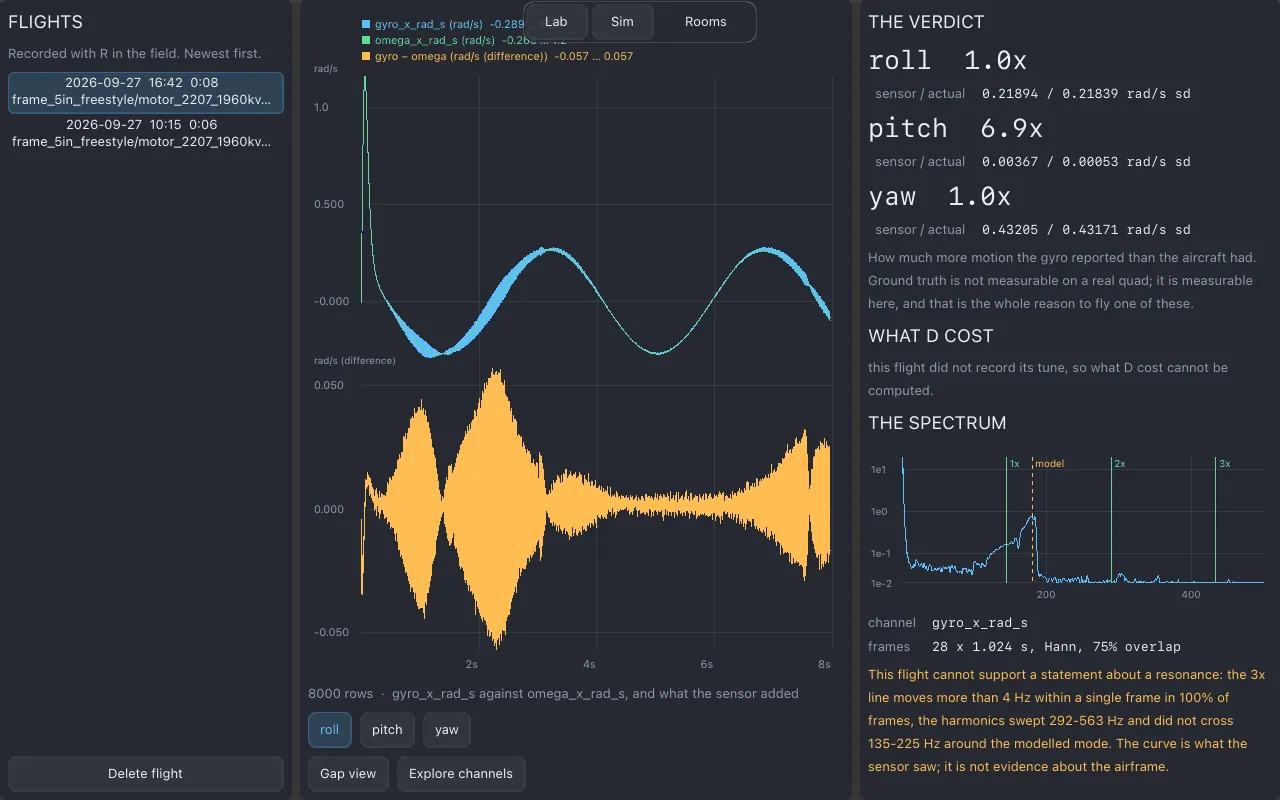
- Click Rooms, then Studio — flights already flown.
- Your flight is at the top of the list, newest first. Select it to see what the file says about it, its channels and its spectrum. See Studio.
To get back to the drone, click Lab.
Where to go next
Section titled “Where to go next”- Recharge the pack before the next flight: Power → Battery, then the charger on its page. See Power.
- Try Duplicate in the project menu to keep this drone and make a variant. See Projects and saving.
- The screen explains every control you just used.
Documentation licensed underCC BY 4.0. Lothal itself is GPL-3.0-or-later.Report a problem.Roadmap.