
Field
Field is where you fly: the site (its size, height above sea level and ground), the course of gates laid out on it, and the weather. Everything here is carried into Sim, and the conditions also change the numbers in Lab.
Where it is
Section titled “Where it is”Click Field in the section row. Field is the one section that shows the place rather than the drone: the view switches to the selected site, with its course drawn on it. The list shows Site, Course and Conditions. Clicking a row shows that panel.
A flat outline at the start gate shows how wide your drone is next to the gates. It shows the drone’s span only, not its height.
The rail
Section titled “The rail”On the left of the site view:
- Sites. The places you fly. Selecting a site selects its first course.
- Courses. The courses at the selected site. Below the list: a Course name box (type a name and press Enter to rename), New and Delete.
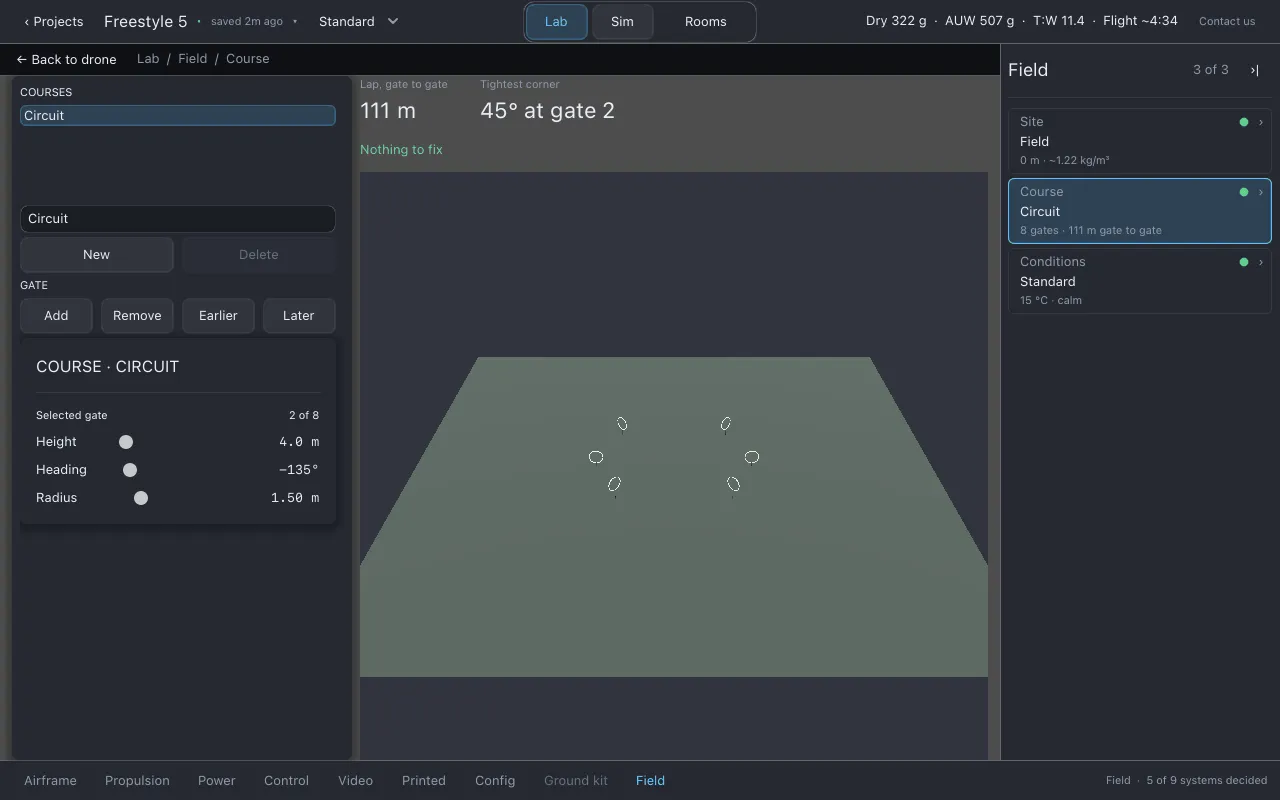
- Gate. Add, Remove, Earlier and Later. The order of the gates is part of the course: the same gates flown in a different order is a different course.
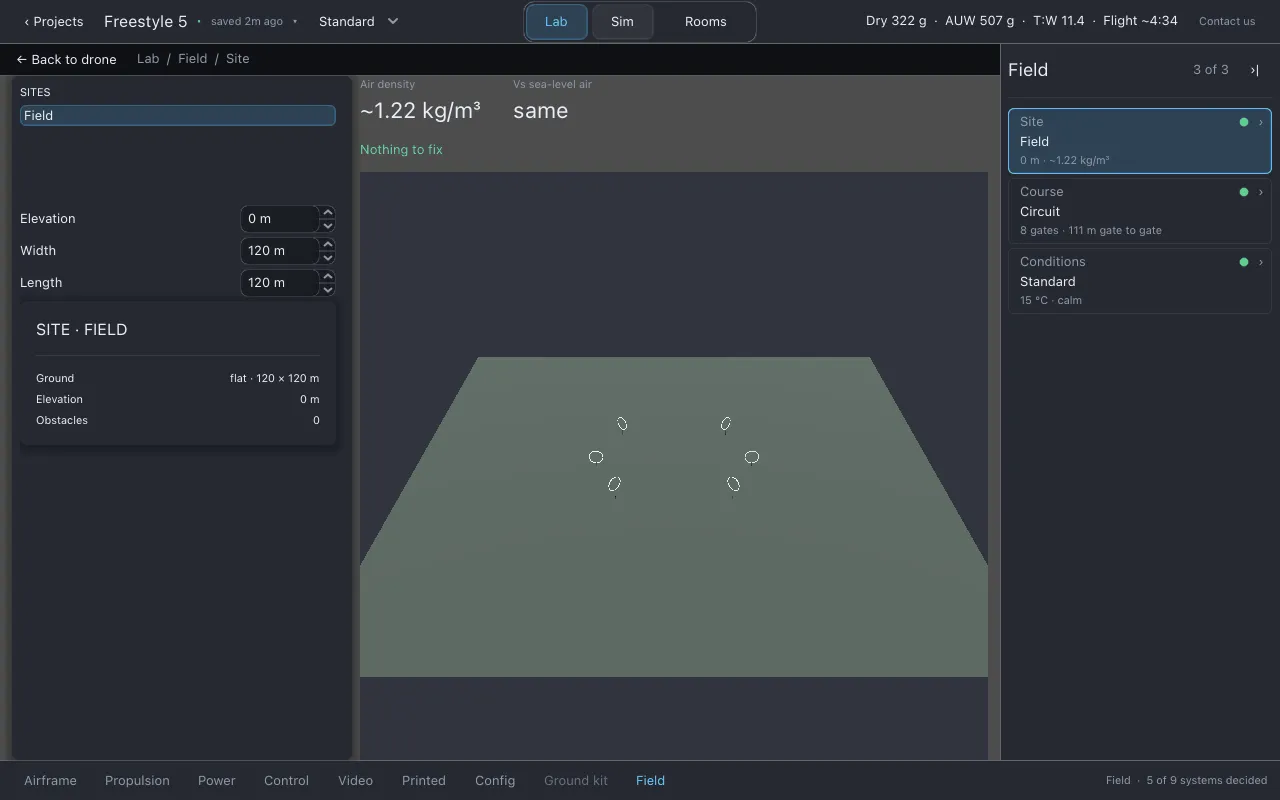
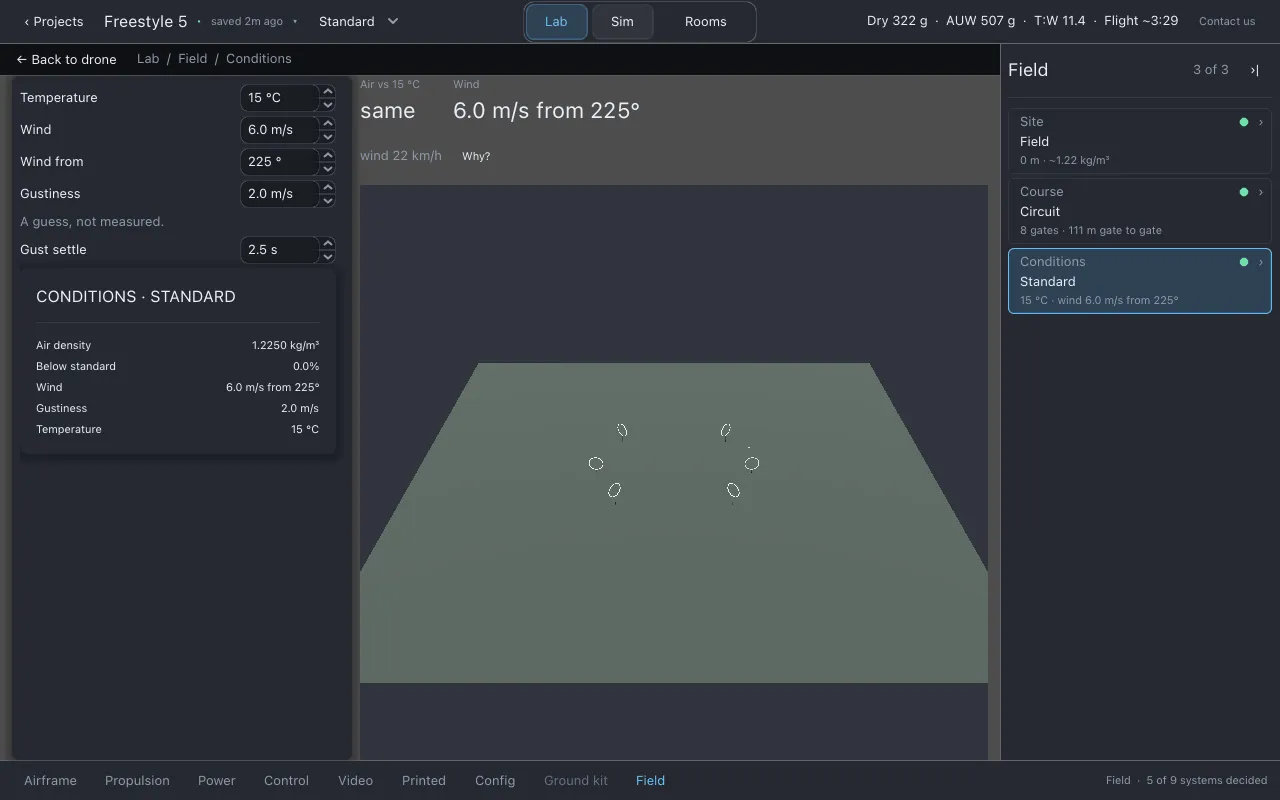
- The field. Typed numbers for the site and the day: Elevation (m), Temperature (°C), Width and Length (m), Wind (m/s), Wind from (°), Gustiness (m/s) and Gust settle (s). Gust settle is labelled A guess, not measured.
- Line 3: the site’s elevation and its air density.
- The panel shows the site’s name, its ground shape and size (for example
flat · 120 × 120 m), its elevation, and how many obstacles it has.
Elevation matters because air is thinner higher up. Thinner air means props make less thrust at the same RPM.
Course
Section titled “Course”- Line 3: the number of gates and the distance gate to gate around the lap, in the form
N gates · N m gate to gate. - Placing gates: drag a gate in the site view to move it.
- The panel has three sliders for the selected gate, the three things a drag cannot set: Height above the ground, Heading (which way it faces) and Radius (how big the ring is). Below them are the course’s warnings.
Conditions
Section titled “Conditions”- Line 3: the day’s temperature and wind.
- The panel shows the conditions in force.
- The same conditions are chosen from the Conditions menu in the top bar, from any section. Every figure in Lab, such as flight time and thrust-to-weight, is quoted under them. Standard is 15 °C and calm.
How the field reaches Sim
Section titled “How the field reaches Sim”Sim flies the selected course, at its site, under the chosen conditions. Your best lap is saved per course and per site and conditions, so a lap in a gale at altitude is not compared with a calm lap at sea level. See Flying in Sim.
What to watch for
Section titled “What to watch for”The course warnings never tell you a course is too hard. They report measurements, such as the lap length and the tightest turn, and warn only where the geometry refuses:
a gate is below ground,a ring is smaller than the drone,two rings intersectroute passes through a gate,a gate hits an obstacle,route passes an obstaclecourse leaves the site
On Conditions, notes on what the air and the wind do to this build.
Honest limits
Section titled “Honest limits”- Gust settle time is a guess and is labelled as one.
- There is no radio link in the sim, so range and failsafe cannot be flown.
Related
Section titled “Related”Documentation licensed underCC BY 4.0. Lothal itself is GPL-3.0-or-later.Report a problem.Roadmap.