
First launch
The Projects screen
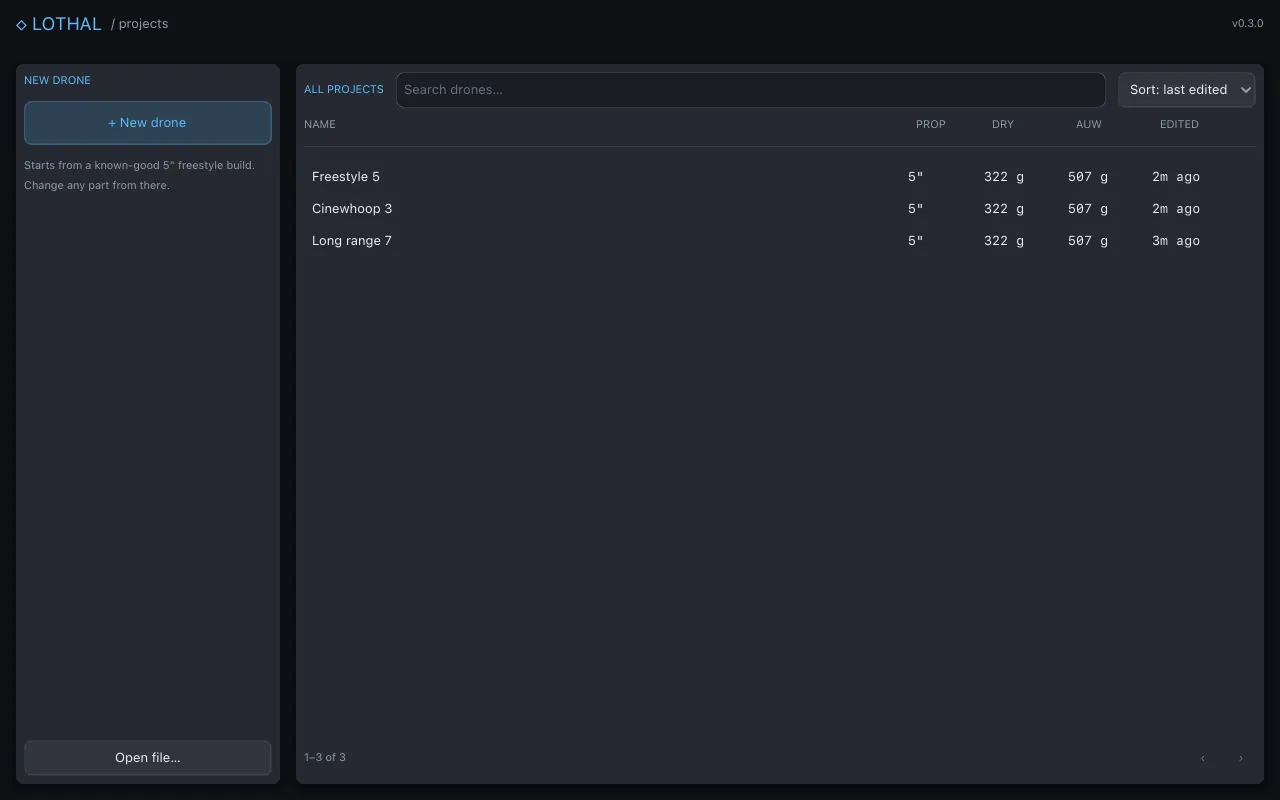
Section titled “The Projects screen”Lothal always opens on the Projects screen, a list of every drone you have saved.
- + New drone starts a new drone from a known-good 5-inch freestyle build: a 5” freestyle frame, 2207 1960 KV motors, 5 × 4.3 × 3 propellers and a 4S 1500 mAh pack, with the default electronics fitted. You change any part from there. Lothal deliberately does not start you on an empty frame.
- Open file… opens a
.lothalfile from anywhere on your computer. - All projects lists your saved drones with their name, propeller, dry mass, all-up weight and when they were last edited. Type in Search drones… to narrow the list. Click a row to open that drone.
On a first launch the list is empty and says so.
A drone open in Lab
Section titled “A drone open in Lab”After + New drone you are in Lab, the garage, looking at the drone. The whole screen is the drone, with a thin bar along the top and a row of section names along the bottom.
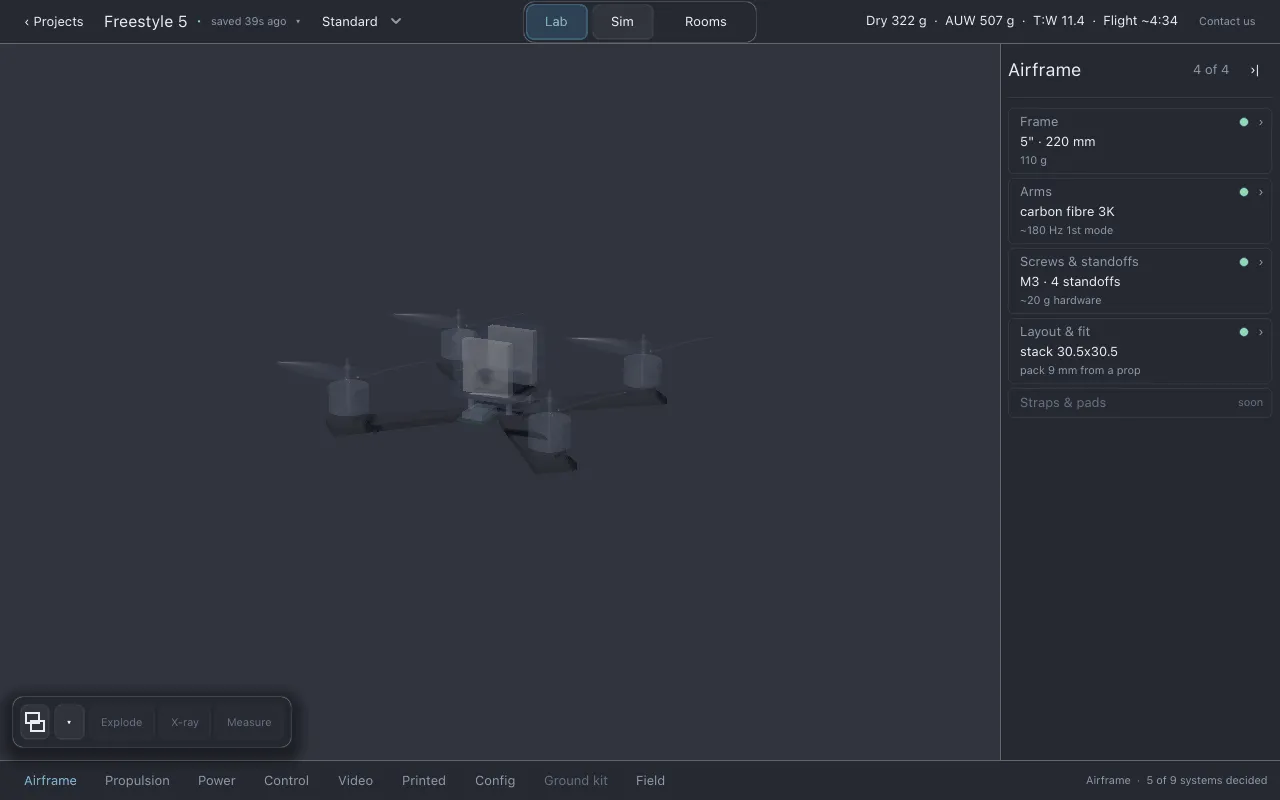
- Top bar. ‹ Projects, the drone’s name (click it for the project menu), whether it is saved, the weather it is being judged in, and in the centre Lab, Sim and Rooms. On the right are the build’s numbers: dry mass, all-up weight (AUW), thrust-to-weight (T:W) and estimated flight time, then Contact us, which opens this site.
- Section row. The nine sections of the drone, in order: Airframe, Propulsion, Power, Control, Video, Printed, Config, Ground kit and Field. Click one to select it.
- Section list. On the right, the rows of the selected section. Each row says what you chose and the one number that decides it.
There is no save button. Lothal writes any change to disk within about a second. See Projects and saving.
The screen explains every part of this layout in detail.
Your first build and flight walks you from here to a recorded lap in about ten minutes.
Documentation licensed underCC BY 4.0. Lothal itself is GPL-3.0-or-later.Report a problem.Roadmap.