
Projects and saving
Each drone is one project, saved as one .lothal file.
Saving is automatic
Section titled “Saving is automatic”There is no save button. Lothal checks the open drone every second and writes any change to disk. Beside the drone’s name in the top bar, the saved state says when it was last written.
A new drone is written to disk the moment it is created, so nothing is lost if you close the app straight away.
The project menu
Section titled “The project menu”Click the drone’s name in the top bar to open the menu.
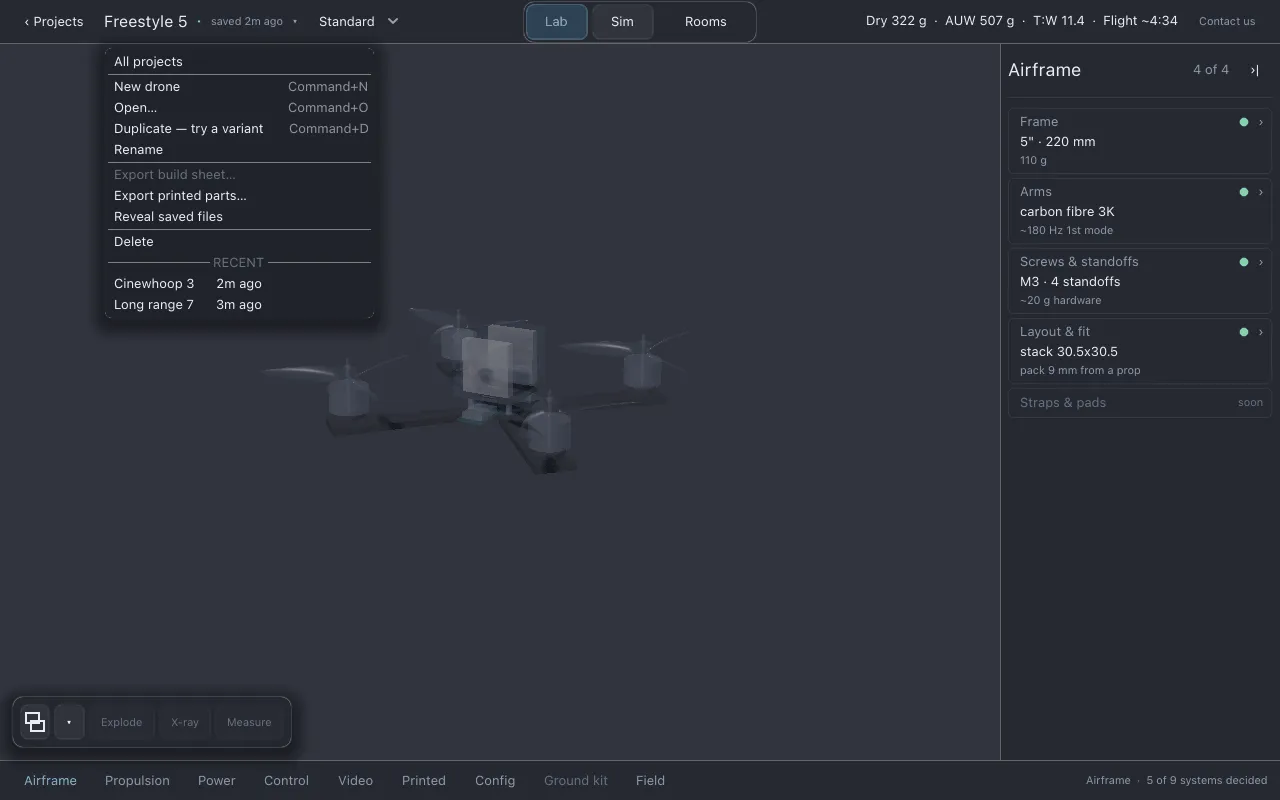
| Entry | What it does |
|---|---|
| All projects | Saves and closes the drone and shows the Projects screen. Same as ‹ Projects. |
| New drone | Starts a new drone from the known-good 5-inch starting build. |
| Open… | Opens a .lothal file from anywhere on your computer. |
| Duplicate — try a variant | Makes a copy of this drone with its own name (“… copy”) and opens it. |
| Rename | Renames the drone. A blank name is refused. Renaming never moves the file. |
| Export build sheet… | Greyed in this version. To get a sheet, use Config → Sheet. |
| Export printed parts… | Writes every printed part this drone needs as STL files. See Printed. |
| Reveal saved files | Opens the folder that holds the drone’s file in your file manager. |
| Delete | Moves the drone to Lothal’s trash. See below. |
| RECENT | Drones you opened recently. Click one to open it. |
The menu shows keyboard shortcuts beside New drone (Cmd+N), Open… (Cmd+O) and Duplicate (Cmd+D). They use the Meta key on every system, so on Windows and Linux they are the Windows/Super key, not Ctrl.
Duplicate, Rename, Delete and Export printed parts are greyed when no drone is open.
Try a variant with Duplicate
Section titled “Try a variant with Duplicate”Duplicate is how you compare two versions of a drone: duplicate it, change the pack in the copy, then switch between them from RECENT or the Projects screen and compare the top-bar numbers.
A duplicate starts fresh in one respect: it does not carry the original’s records of which parts were already printed, because those parts were printed for the original.
Delete, and getting a drone back
Section titled “Delete, and getting a drone back”Delete does not erase anything. It moves the drone’s file into a trash folder inside the
folder where drones are saved, closes it, and shows the Projects screen. There is no confirmation dialog because nothing is lost. Lothal never empties the
trash.
To get a deleted drone back:
- Open the project menu and choose Reveal saved files, or find the folder using
Where files live (
builds/). - Open the
trashfolder inside it. Move the drone’s.lothalfile back out intobuilds/. - In Lothal, use Open… to open it.
Where drones are saved
Section titled “Where drones are saved”New drones are saved in the builds folder of Lothal’s data folder, named after an internal
id rather than the drone’s name, so two drones can share a name and a rename never moves a
file. Where files live gives the folder for each operating
system. A drone opened with Open… from elsewhere stays where it is.
A .lothal file is a zip. File formats lists what is inside.
Documentation licensed underCC BY 4.0. Lothal itself is GPL-3.0-or-later.Report a problem.Roadmap.