
Flying in Sim
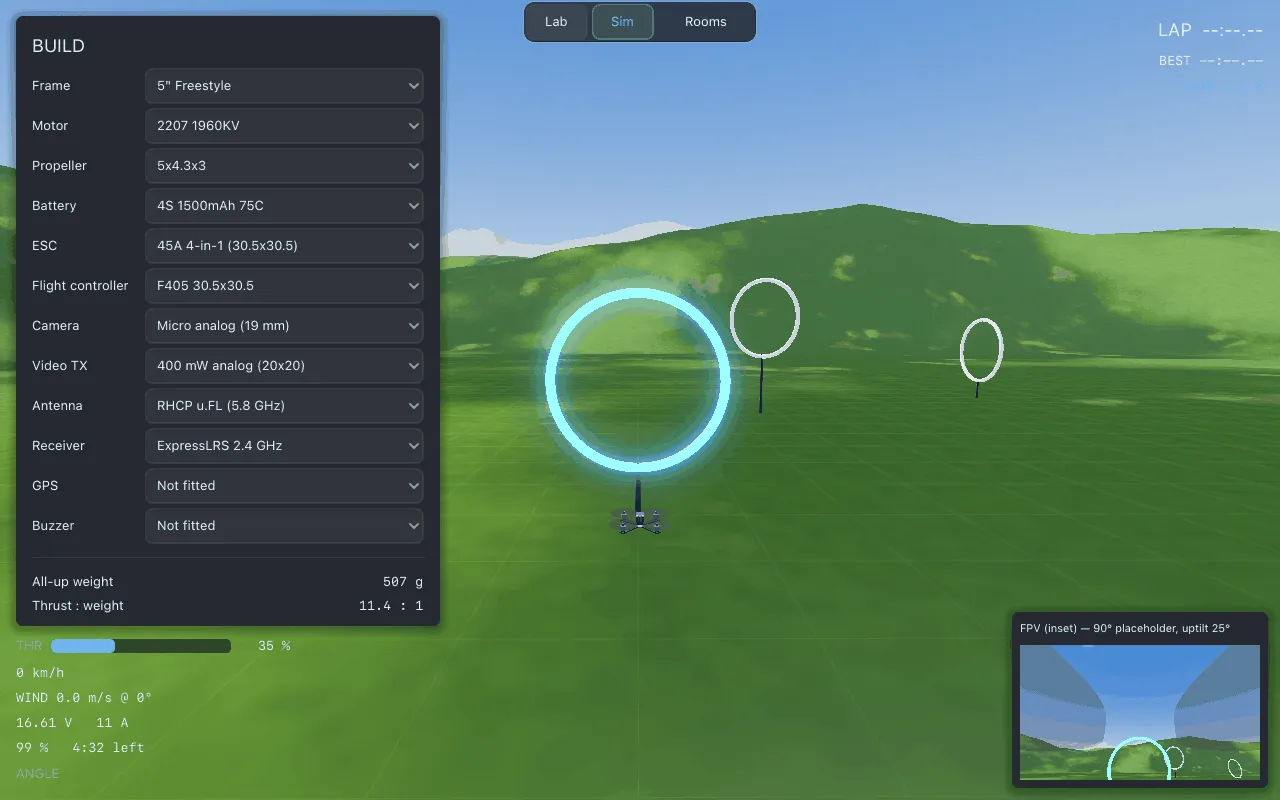
Sim flies exactly the drone you built, through the course you laid out in Field. You cannot change the drone in Sim; to change a part, go back to Lab.
Going in and out
Section titled “Going in and out”Click Sim in the centre of the top bar. Everything else on the screen goes away: no sections, no list, no tools. Only Lab · Sim · Rooms stays, and Lab is the way back to the garage.
Controls
Section titled “Controls”A gamepad is strongly recommended. The keyboard works as a fallback, but a key is either fully on or fully off, so it cannot fly as smoothly as a stick.
| Gamepad | Keyboard | |
|---|---|---|
| Pitch and roll | Right stick | Arrow keys |
| Throttle | Left stick, up and down | W / S |
| Yaw | Left stick, left and right | A / D |
| Angle / acro | Button A | Space |
If a gamepad is connected, Lothal reads the gamepad; otherwise it reads the keyboard.
Throttle is centred on hover. With the throttle stick centred (or no throttle key held), the drone holds the throttle it needs to hover. Up climbs and down descends. Full down does not cut the motors. On the keyboard, holding W or S gives the same climb or descent on every build, however heavy or powerful.
Angle and acro
Section titled “Angle and acro”You start in angle mode: the stick sets how far the drone leans, and letting go levels it.
Acro (rate) mode is what most FPV pilots fly: the stick sets how fast the drone rotates, and
letting go holds the angle it is at. Press Space or button A to switch. The HUD shows
ANGLE or ACRO.
Views and sound
Section titled “Views and sound”| Key | Does |
|---|---|
| C | Switches the FPV camera feed between a corner inset and the whole screen. |
| L | Switches where you hear the drone from: the pilot’s position on the ground, or the chase camera. |
| Tab | Hides or shows the build panel. |
The HUD
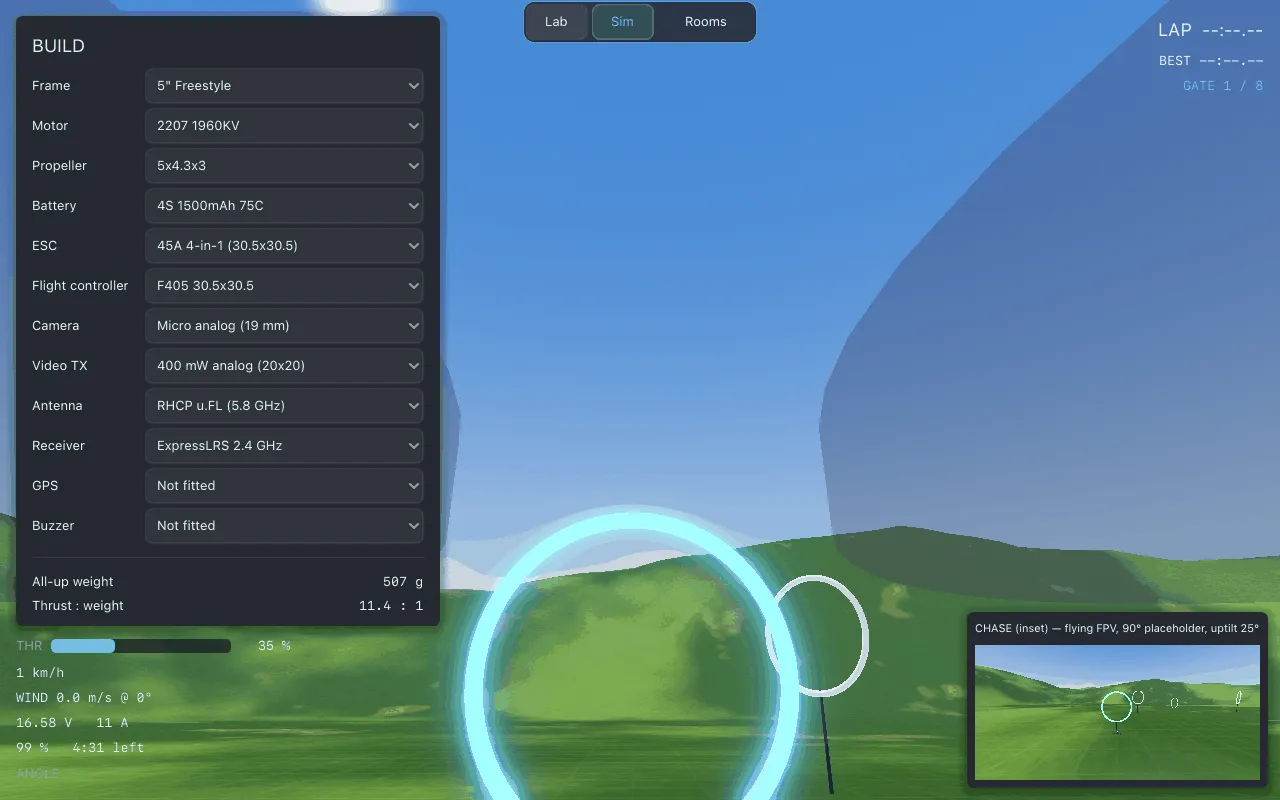
Section titled “The HUD”The HUD shows throttle (THR), speed in km/h, the wind, the pack’s voltage and current, the
charge left and the flight time left, the mode, and the lap block: current lap, best lap and
next gate (GATE 3 / 8).
The flight time left is the better fuel gauge. A pack’s voltage barely moves for most of a flight, then drops fast near the end.
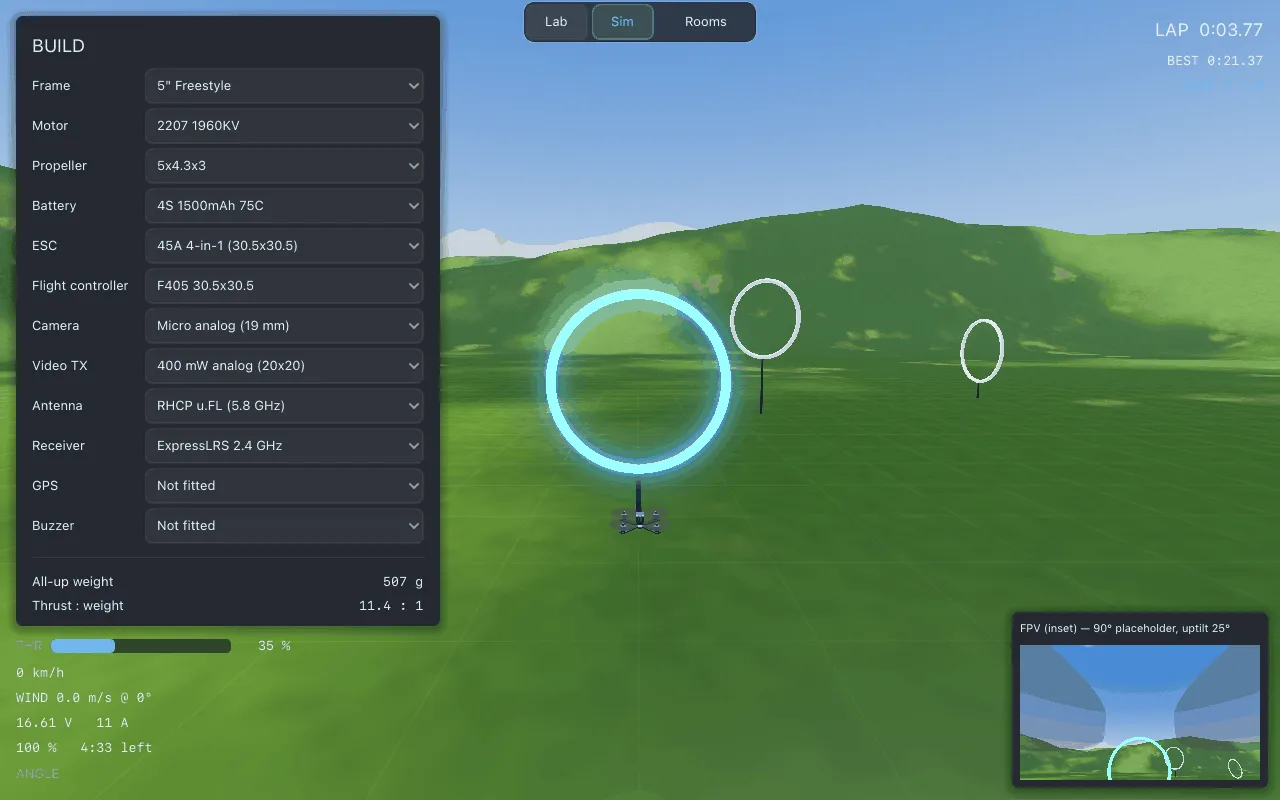
Fly through the gates in order. When you complete a lap, a banner shows LAP and the time, or
NEW BEST when you beat your record.
Your best lap is saved per course, site and conditions, so a lap in wind at altitude is not compared with a calm lap at sea level.
Crashes
Section titled “Crashes”If you hit the ground, the drone restarts at the last gate you cleared, facing the next one. The lap in progress does not count. The pack is not refilled.
The pack drains
Section titled “The pack drains”Flying uses the pack’s charge, and the charge carries over to the next flight and back to Lab. To fill it, use the charger on the Battery page.
Recording a flight
Section titled “Recording a flight”Press R to start recording. The HUD shows REC with the time and number of rows while
it runs. Press R again to stop; a banner says the log was saved. Leaving Sim also stops
and saves a recording.
Recordings are CSV files, one row per physics step, and they appear in Studio. A recording names the drone that flew, but it can never rebuild that drone. See File formats.
Related
Section titled “Related”Documentation licensed underCC BY 4.0. Lothal itself is GPL-3.0-or-later.Report a problem.Roadmap.